Group Management
The group detail page (/groups/<id>) is where a group's owner manages its members.
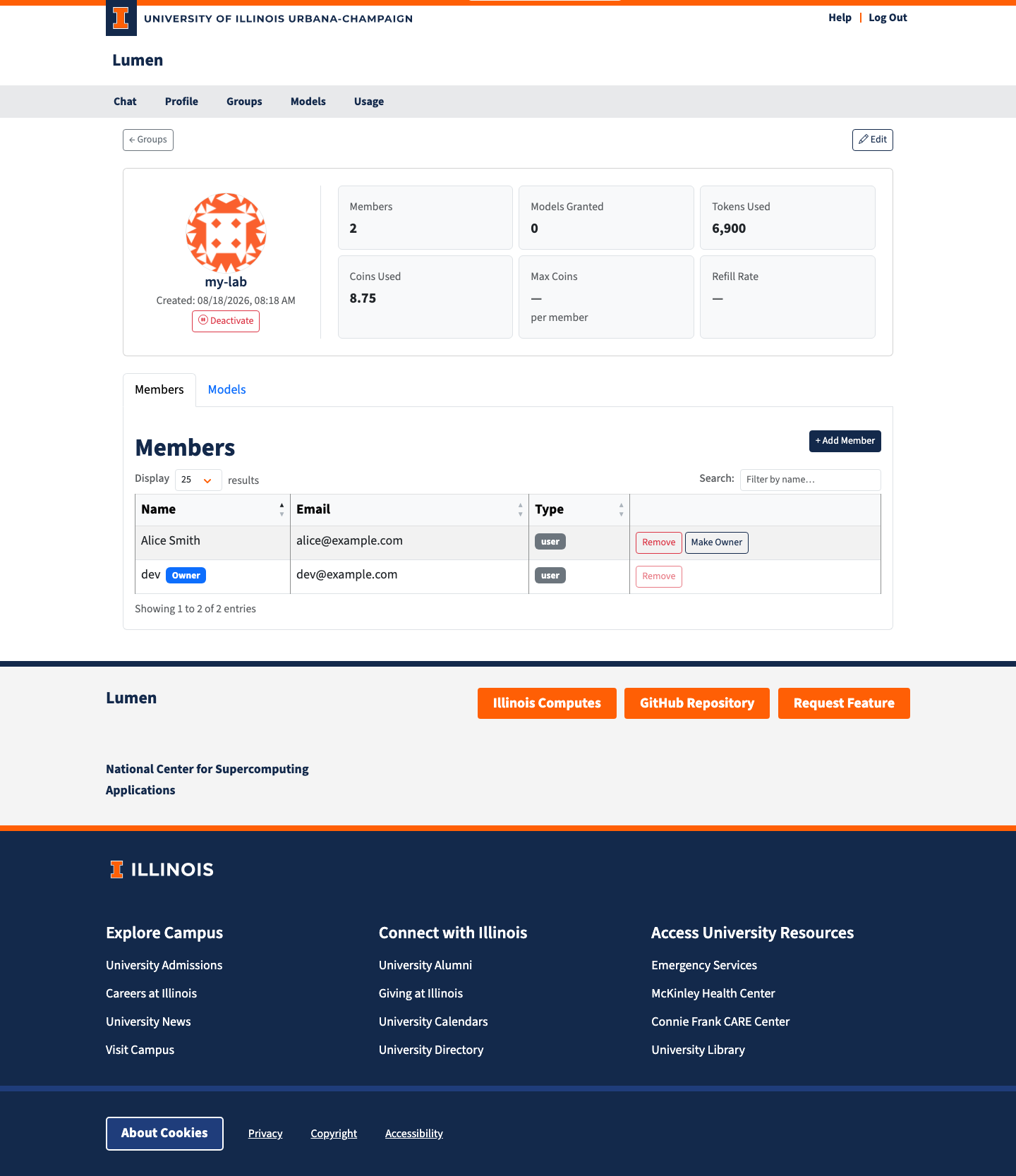
Header Card
The card at the top of the page shows:
| Field | Description |
|---|---|
| Members | Number of users and projects in the group |
| Max Coins | The coin ceiling each member inherits (Unlimited, a number, or — for no group pool) |
| Refill Rate | Coins added per hour under the group policy |
The owner and admins also get Deactivate / Activate here, and an Edit button in the top-right that opens a dialog for the group's name, description, and active flag. Admins can additionally set Max Coins and the Refill Rate; clearing Max Coins removes the group's coin pool entirely.
Members
Groups with no owner: if the group has no owner, the Members tab is hidden for everyone except administrators. Assign an owner to make it visible again. See Groups Overview for the reasoning.
The Members tab lists every user and project in the group, with the date each member joined (a dash for memberships older than this feature). The table is sortable by name, email, type, or join date, and paginated — use the Display selector and the search box for large groups.
- The owner carries an Owner badge.
- For administrators, each user member's name links to that user's profile page (admin mode), where their usage, model access, and limits can be viewed.
- In an auto-join group, membership is entirely rule-driven: there is no owner, and nobody — not even an administrator — adds or removes members by hand. Change the rules instead; the change takes effect at each member's next sign-in.
Adding a Member
- Click + Add Member.
- Type at least two characters of a name to search. Both users and projects are offered; each result shows its type.
- Pick a result from the list, then click Add Member.
Removing a Member
Click Remove on their row and confirm. The owner cannot be removed — transfer ownership first.
Transferring Ownership
Click Change Owner (next to + Add Member), search for the new owner by name or email, pick them from the list, and confirm. Only existing members of the group are offered — ownership is a promotion, not an invitation — and only users qualify (projects cannot own a group). The previous owner stays in the group as a regular member; their Remove button is disabled until ownership has moved. If you transfer your own group away, you lose the ability to manage it.
Rules (Admin Only)
The Rules tab defines the group's auto-join behavior. Administrators only — rules add members based on identity-provider claims, so they are organization policy.
- Toggle Auto-join enabled.
- Add one rule per condition: a userinfo field (e.g.
affiliation,idp), a match type (contains for substring, equals for exact), and a value. - Click Save Rules.
A user is added at sign-in only when all rules match, and is removed again at a later sign-in that no longer matches. Auto-join cannot be saved without at least one rule, and cannot be enabled on a group that has an owner or manually added members — an auto-join group is fully automatic. Turning auto-join off keeps the rules stored but inactive and converts the group back to manual management (an owner can then be assigned and members added by hand).
When creating a group, administrators can check Auto-join in the New Group dialog and define the rules right there.
Who Can Do What
| Action | Admin | Owner | Member |
|---|---|---|---|
| View the group | ✓ | ✓ | ✓ |
| See members of an ownerless group | ✓ | — | — |
| Edit name, description, active | ✓ | ✓ | — |
| Set Max Coins / Refill Rate | ✓ | — | — |
| Add and remove members (manual groups) | ✓ | ✓ | — |
| Add and remove members (auto-join groups) | — | — | — |
| Transfer ownership | ✓ | ✓ | — |
| Edit auto-join rules | ✓ | — | — |
| Deactivate the group | ✓ | ✓ | — |