Project Detail
This page is for people managing Lumen-based services and tools. For details on what a project is, start with the Projects overview.
The project detail page (/projects/<id>) is where you manage a specific project: view usage, add members, create API keys, and check model access. It is laid out like the Profile page: a header card at the top, followed by Members, API Keys, and Models tabs.
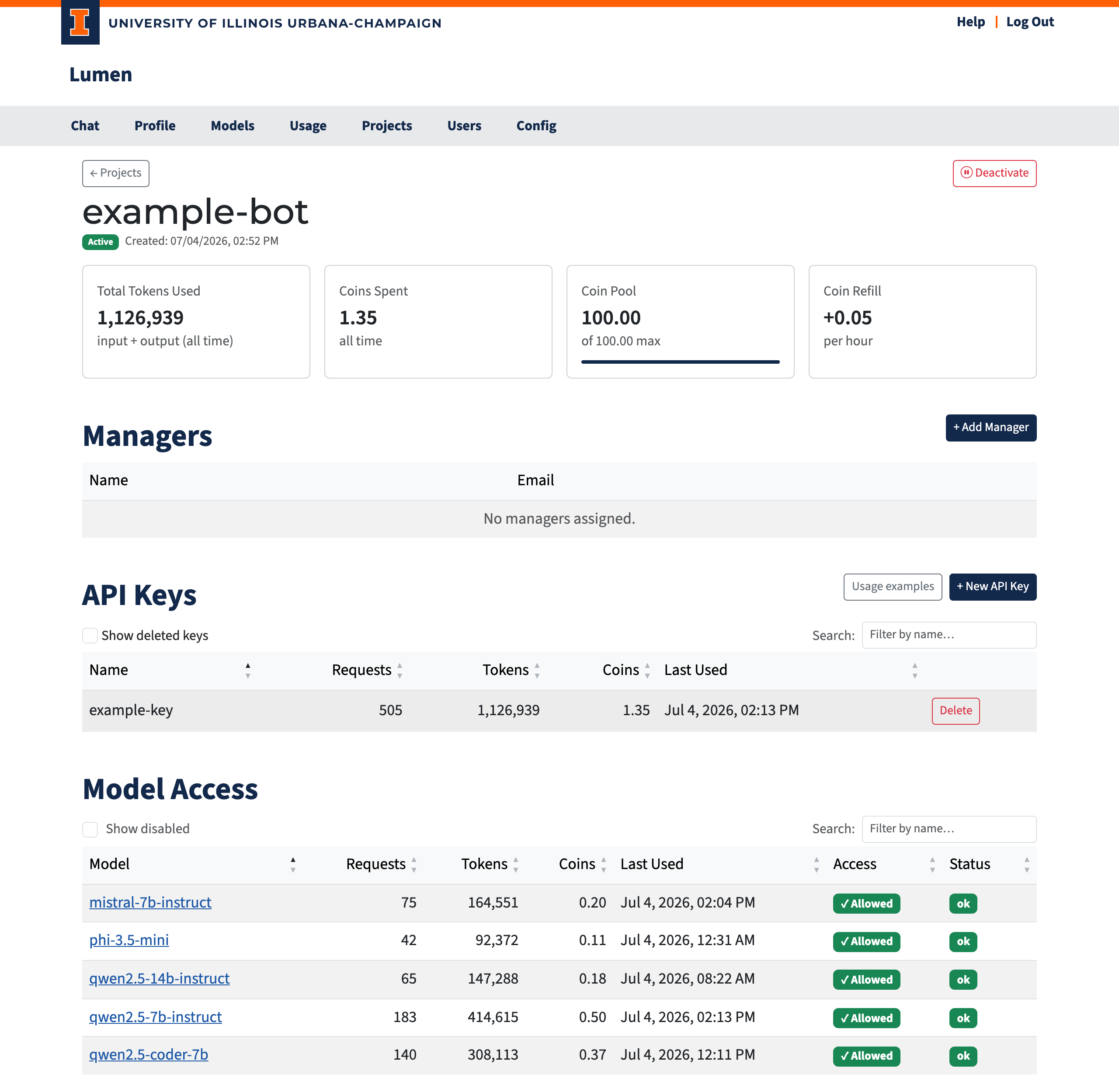
Header Card
The left side of the card shows the project's auto-generated avatar, its name, the creation date, and — for the owner or an admin — the Deactivate/Activate button. The right side shows the project's activity and budget:
| Card | Description |
|---|---|
| Members | Number of members listed on the Members tab (a user sees a smaller count; see below) |
| Coins Used | Total coins spent by this project |
| Tokens Used | All input + output tokens this project has consumed |
| Favorite Model | The model this project has sent the most requests to |
| Coins Available | Current balance (or Unlimited / not configured) |
| Refill Rate | Auto-refill rate and countdown to next refill |
Editing the Project
The owner and admins see an Edit button above the stat cards. It opens a dialog where the owner or an admin can change the project's name and Active flag. Admins additionally see the project's coin pool: Max Coins (-2 = unlimited, 0 = blocked) and Refill Rate (coins added per hour). Clearing Max Coins removes the project's own pool so it falls back to its groups or the global defaults; lowering Max Coins clamps the current balance to the new cap.
Members
Everyone who can open the project is a member, and every member has one role. The Role column shows it as a text badge:
- Owner: the one manager the project belongs to. Every project always has exactly one owner.
- Manager: can create and revoke any of the project's API keys, and add or remove users.
- User: can create one API key at a time and sees only the keys they created.
The list shows the owner first, then managers, then users, sorted A–Z by name within each group. A user sees only themselves, the owner and the managers, not the other users. Managers, the owner and admins see every member.
Adding a Member (manager, owner or admin)
- Click + Add User.
- A search dialog opens. Start typing a user's name or email.
- Select the user from the dropdown.
- Pick a Role. Managers can only add users; the Manager option appears only for the owner and admins.
- Click Add User.
Removing a Member
Click Remove next to the member. Managers can remove users; only the owner or an admin can remove managers. The owner can't be removed: the owner and admins see the owner's Remove button disabled, with the hint "Make another manager owner first". Managers see no button on the owner's row.
Promoting and Demoting (owner or admin)
Click Promote next to a user to make them a manager, or Demote next to a manager to make them a user. The owner cannot be demoted.
Transferring Ownership (owner or admin)
Click Make Owner on a manager's row and confirm. The button appears only on manager rows, so promote a user first if needed. The previous owner becomes a regular manager. If you are the current owner, transferring ownership means you will no longer be able to add or remove managers or toggle the project.
What Each Role Can Do
| Action | User | Manager | Owner | Admin |
|---|---|---|---|---|
| View the project, its usage and model access | ✓ | ✓ | ✓ | ✓ |
| Grant model consent for this project | — | ✓ | ✓ | ✓ |
| Create API keys | One at a time | ✓ | ✓ | ✓ |
| See and revoke API keys | Own keys only | All | All | All |
| Rotate API keys: creator only | ✓ | ✓ | ✓ | ✓ |
| Add / remove users | — | ✓ | ✓ | ✓ |
| Add / remove managers, promote / demote | — | — | ✓ | ✓ |
| Transfer ownership | — | — | ✓ | ✓ |
| Activate / deactivate or rename the project | — | — | ✓ | ✓ |
| Change the coin pool (Max Coins / Refill Rate) | — | — | — | ✓ |
API Keys
This section works exactly like the API Keys section on the Profile page, but keys here belong to the project, not to your personal account.
Managers, the owner and admins see every key in the project. A user sees only the keys they created, without the Created By column.
Creating a Key
- Click + New API Key.
- The key is generated and shown once in a dialog — copy it immediately.
- Give the key a descriptive name (e.g.,
production,staging,ci-runner). - Click Save Key.
If you are a user and already have an active key, + New API Key is disabled and the page explains why. Revoke your key to create a new one.
Keys follow the same sk_... format as personal API keys. Use them exactly the same way in code:
from openai import OpenAI

project = OpenAI(
    api_key="sk_project_key_here",
    base_url="https://lumen.ncsa.illinois.edu/v1"
)

response = project.chat.completions.create(
    model="gpt-4o",
    messages=[{"role": "user", "content": "Summarize this dataset: ..."}]
)
Key Table
| Column | Description |
|---|---|
| Name | Label you chose |
| Created By | User who created the key (email if no display name); Unknown for keys created before this was tracked, or whose creator was deleted. Not shown to users. |
| Hint | First 7 + last 4 characters for identification |
| Requests / Tokens / Coins | Usage tracked on this key |
| Last Used | Timestamp of the last API call |
| Actions | Rotate (keys you created) and Revoke buttons for active keys |
Revoking a key deactivates it immediately and keeps its usage. Use Show revoked keys to view revoked keys (deactivated, usage kept); hover over or focus a key's revoked badge to see when it was revoked, in your local time, and who revoked it (e.g. Revoked 10/10/2026, 2:15 PM by Jane Doe). The name is left out when no revoker is recorded: keys revoked before this was recorded, keys revoked automatically because an OAuth code was replayed, or keys whose revoker was deleted. Times for keys revoked before this was recorded are approximate. Use the search box to filter by key name or creator (by name only for users).
Rotating a Key
Click Rotate to replace a key's secret while keeping its name and usage stats. The button only appears on keys you created; other managers, the owner and admins cannot rotate your keys. The flow is the same as on the Profile page: the current key stops working immediately and the new key is shown once.
Model Access
This table shows which models this project can use and how much it has consumed on each. Models awaiting acknowledgment remain visible; models blocked for the project and disabled, expired, or deleted models are omitted without exposing their metadata. The columns and access badges are the same as on the Profile page.
If a model shows Needs consent, the owner or a manager (or an admin) can click it to grant acknowledgment on behalf of the project, making the model available to all API keys associated with this project. Users see Needs consent: ask a project manager instead, and need a manager or the owner to acknowledge the model.